Organizing Your Digital Files
If someone asked you right now for a file from last year, could you find it in under a minute? If the honest answer is no, today’s episode is for you.
Organizing Your Digital Files
Last week, we talked about how much disorganization can cost you: your time, your peace of mind, and your working relationships. I asked you to pick that one cost that hits you the hardest. Well, please keep that in mind today because that’s where we’re going to start to fix it.
Today is all about your files, and I want to make this simple. You really only need to make three decisions:
- How to structure your folders
- How to name your files
- Where to store them
So let’s take them one step at a time. Decision number one is the structure. That is the first decision to make.
Structure
This is how your folders are set up, and you can think of these as buckets. Everything goes into a bucket. There are three common ways to do this. This is going to depend on the type of business that you have. So some of these may not apply to you. I do want to preface this by saying that. The first one is if you have a client-based business.
Every client gets a folder, and everything for that client lives inside that folder. That works well if you serve clients one-on-one, and most of your work belongs to a specific person or organization. The second is project-based. Every project gets a folder. Your book, your course, your podcast, your next speaking event.
This works well if your work is built around things you create. So for me, I have both a set of client folders, and I have a set of project folders. So that might be the case for you as well. The third way is date-based. You organize by year, then by month, or by quarter inside each year.
Different Folder Types
This works well for things that repeat on a schedule, like newsletters, blog posts, or financial records. So even though I have project-based and client-based, I also have some date-based folders. These are for my finances. So I have a folder called finances. Inside that folder, I have folders for the years I’ve been in business.
Actually, mine only goes back to about 2017 when I started this process, but I have 2017 all the way up to 2026, and inside that I have months, January through December. So this is for financials. I also do the client thing where I have clients, and they are in alphabetical order.
Then I also have folders for projects. Like I was explaining, one for a book, one for a course, and then under the course it might be under modules by topics. Think of it that way. That’s decision number one, your structure.
File Names
Next comes decision number two, which is how you name your files. These are called naming conventions. This one is one that most people will skip, and it makes a big difference when you come to searching for your files. A naming convention is just a rule for how you type a file name.
There are five common styles, and I’m going to give you some examples for each one. The words in my file name are the words I’m going to use so that you can see the difference.
So number one, every word starts with a capital letter, and there are no spaces between the words. It’s capital M for me, capital F for file, and capital N for name, and they all run together. So you don’t put any spaces. MyFileName. First letters are capitalized.
The second way that you can do this is all capital letters, no spaces. So you run the words in MY FILENAME all together, all caps, all one word. Number three is a snake case, like a slithering snake. All lowercase letters with an underscore between each word.
My_file_name. On your keyboard, the underscore is the Shift key, and then the underscore is with the minus right beside the plus key up near the delete button on a standard keyboard. So that is snake case.
Then we have number four, which is kebab. Yes, like a shish kebab. All lowercase letters with a hyphen between each word.
My-file-name. Last is number five, which is called a flat case. They are all lowercase, with no spelling, and with nothing between the words. So just my filename, all one word.
So which one is right for you? Honestly, the one you use every single time. Consistency matters more than which style that you pick, and when every file name is the same way, your eyes know what to look for, and it’s so much faster when you use the search bar.
But if you work with a team or a virtual assistant, decide together and write it down so everyone names the files the same way. So that was decision number two, naming conventions. Decision number one was structure for your folders.
Storage
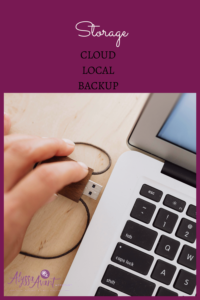
Decision number three is storage. This decision is where your files live. You have two main choices: cloud storage and local storage. Cloud storage keeps your files online. The advantage is that you can get them from any device anywhere you have the internet. You can easily use and share them with your team or clients, and you won’t lose them if your computer crashes.
The disadvantage is you’re going to need an internet connection to reach them, and you may have to pay monthly fees as your storage grows. Local file storage means they’re kept on your computer or an external hard drive. The advantage is you can work without the internet, and there’s no monthly fee. The disadvantage is your files are only on that one device; they’re harder to share with others, and if that device is lost or damaged, you don’t have a backup; your files are gone.
So a few tools to consider are Google Drive, Dropbox, and Evernote. I have used all three of these. I am currently using Google Drive. The reason is, for me, it was economically the best bet, and it also integrated with other tools, and I was able to sync the files. They sync live, and there’s no delay, and so someone on my team can be looking at a file, and it’s the same as what I’m looking at.
Backup
Whatever you choose, make sure your most important files exist in more than one place. So I would have the Google Drive but also back it up to an external hard drive as well. Let’s bring this all together. Three decisions.
- Structure: client-based, project-based, or date-based.
- Naming conventions. Pick one; use it every single time.
- Storage—cloud, local, or a combination with a backup.
Make those three decisions, and you never have to think about them again. So here’s your assignment. I want you to keep it small. Choose one structure and one naming convention, then apply them to just one folder on your computer.
Not your whole computer, just one. Maybe it’s your current client. Maybe it’s a project that you’re working on right now. Set up that one folder that way and see how it feels to open it and know exactly where everything is. Remember what we said last week: small changes can lead to a massive improvement.
Next week, we’re going to talk about moving from your files to your calendar. We’ll talk about choosing the right calendar, how to time block your week, and a simple focus tool. I’m not going to tell you what it is yet. You won’t want to miss it. If you found this episode helpful, please share it with a friend who’s drowning in digital clutter, and make sure you’re subscribed so that you can catch part three.